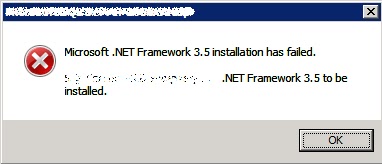
You must use the Role Management Tool to install or configure Microsoft .NET Framework 3.5 SP1.

If you are installing a product which requires .Net Framework  3.5 or .Net Framework 3.5 SP1, on Windows 2008 operating system, you may get the error : "You must use the Role Management Tool to install or configure Microsoft .NET Framework 3.5 SP1."


Actual cause of this error is: Your application requires .Net Framework 3.5. It tries to install the .Net Framework but Windows 2008 has already pre-installed .Net Framework. So the Operating system doesn't allow product to install the .Net Framework. It says Use Role Management Tool to enable the .Net Framework which is already installed as a feature. So once you enable the .Net Framework feature using Role Management Tool you will not require to install .Net Framework 3.5.


Follow these steps to enable .Net Framework feature using Role Management Tool:
1. Launch Start Menu. Go to All Programs -> Administrative Tools -> Server Manager. (Alternatively you can launch the server Manager by typing ServerManager.msc at Run prompt.)
2. In the Server Manager console, on the left hand side click on Features. It will show you Features Summary window. 


3. On the right hand side you will find Add Features blue colored link. Click on that. It will launch the Add Features Wizard.
4. On the Add Feature Wizard select .Net Framework 3.5.1 Features. It will launch a dialog for Add role confirmation. Click on Add Required Role Service.
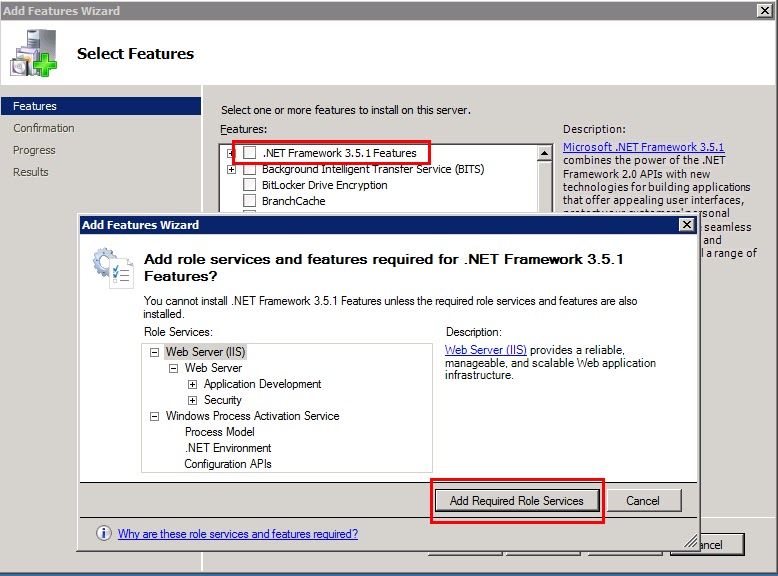

5. Clicking on Next  will take you to Introduction to Web Server(IIS) page, click on Next here.
6. Now on Role Services Page you can select services you want. Don’t click on anything here keep all defaults. Click Next.
7. It will show Install Confirmation page. Click on install and wait till install finishes. It will install the selected features and when if finishes click on close.

Now you can start installation of your product. These steps are verified on Windows 2008 R2 operating system. 

Some useful windows Commands

Following are some useful commands that you can execute through the Run prompt on your windows machine.  
  1. Open Control Panel : control
  2. Open Add Remove programs panel from control panel : appwiz.cpl
  3. Open Power option properties : powercfg.cpl
  4. Open system configuration utility: msconfig
  5. Open Computer Management console : compmgmt.msc
  6. Open Local Security Settings console: secpol.msc
  7. Open Group Policy editor: gpedit.msc
  8. Open Windows Firewall Settings dialog: firewall.cpl
  9. Open Registry editor: regedit or  regedit32.exe
  10. Open System Properties dialog: sysdm.cpl  (Keyboard Shortcut: Start(windows) + Pause Break) you can also the command  "Control.exe system"
  11. Open About Windows dialog box/ To view windows version: winver
  12. Open Network Connections window : ncpa.cpl
  13. Open Windows Task Manager : taskmgr.exe  (Keyboard Shortcut: Ctrl + Shift + Esc)
  14. For Eject Drive or Safely Remove Hardware : RunDll32.exe shell32.dll,Control_RunDLL hotplug.dll
  15. To Open Sound and Audio Device properties dialog: mmsys.cp
  16. Open Service Manager: services.msc (You can connect to local or remote service manager and view\change services properties.)
  17. Open Active Directory Users and Computer Console:  dsa.msc (Note: You should have administrative tools installed and you should able to connect domain controller)
  18. Open Microsoft Management Console: mmc (Note:You can add different snap-ins in MMC console)
  19. Open Active Directory Domain and Trust management console: domain.msc (Note: You should have administrative tools installed and you should able to connect domain controller)
  20. Open internet explorer: iexplore, chrome (for chrome), firefox ( for Firefox). 
  21. To view internet options : inetcpl.cpl
Feel free to share commands that you know or if these does not work on particular operating system, I have tried these on Windows XP. 

Registry Trick for Adding Custom Context Menu for File Right Click

Many times you need to execute particular exe or command for a specific file. For an example if you are browsing the directory and you need to execute particular command on that file on the command prompt. In such situations you will need to open a command prompt then you need to go to that directory, then select the file and execute the command, this requires some time.  And if you are going to repeat this multiple times then you are going to waste much of your time.

Imagine on the right click of any file if you get option of opening command prompt which will take you directly to that directory, instead of you browsing to that directory.

Yes, you can do that by a simple registry trick. Before going ahead please ensure that you are fully aware of windows registry editor and consequences of modifying the registry incorrectly.  To have a backup of the registry follow steps mentioned in the link Backup & Restore Windows Registry.

Steps for registry trick:

  1. Open Start menu, click on Run.
  2. Type regedit and click OK, which will launch the registry editor.
  3. Navigate to registry key HKEY_CLASSES_ROOT\*\shell
  4. Create new key with name Command Prompt, this is the context menu item which will appear on right click of any file.
  5. Create the key with name Command under key Command Prompt.
  6. Under the command key you will find the  key with name (Default) with type REG_SZ, if its not of that type then delete the key and create new key with name  (Default) of type REG_SZ.
  7. Set the value of (Default) to cmd. As we want to open command prompt on click of this menu.
  8. Now close the registry editor. Browse to any file on computer and right click will show you your new context menu. 

This trick I have tried on Windows XP and Windows 2003 and it works. 

Caching is a technique used to store frequently accessed data in a temporary storage layer to improve system performance and reduce latency....